Editor Menu Reference
Every command OxHeart adds under the Unity Tools > OxHeart menu, what it does, and when to use it.
Unity: 6000.0+ — for the current engine version see package.json or CHANGELOG.md
Overview
Installing OxHeart adds a Tools > OxHeart menu to the Unity Editor. The commands fall into three groups:
- Everyday tools you use while building a game — the Setup Wizard, config creators, and validators.
- Audio helpers that apply the engine's default settings to an
AudioMixer. - A sample helper for re-importing a bundled sample when Package Manager leaves it partial.
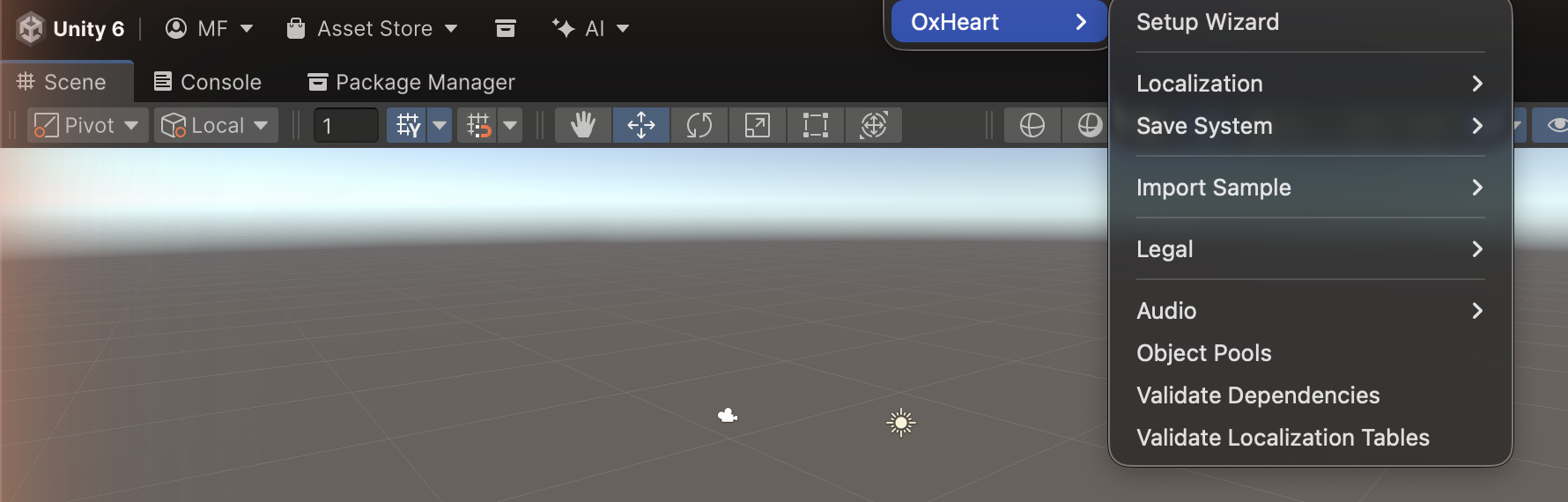
The screenshot above shows the menu exactly as it appears in a project that installed the package.
A few extra engine-development commands exist in the engine's own repository behind a OXHEART_DEV
scripting define; they are described at the end of this page and will not appear in your menu.
Setup and Configuration
Setup Wizard
Tools > OxHeart > Setup Wizard
Opens the five-step Setup Wizard: choose a service profile, pick an output path, create the config assets, wire up a scene initializer, and validate the result. This is the recommended starting point for a new project. See the Setup Wizard page for the full walkthrough.
Legal (Third-Party Notices & Release Compliance)
| Command | What it does |
|---|---|
| Legal > Generate Third-Party Notices | Scans resolved UPM packages, merges the buyer-curated notices file, and writes THIRD_PARTY_NOTICES.txt (path from the manifest). |
| Legal > Package Manifest… | Opens the per-package include/exclude window. Checkbox state mirrors the generator's include decision. |
| Legal > Generate Compliance Artifacts | Writes the deterministic compliance-manifest.json and CREDITS.md to the configured output folder (default Assets/Legal/) and reports what changed since the last accepted manifest. See Release Compliance. |
| Legal > Preview Compliance Diff | Logs the added / removed / changed components to the Console without writing either artifact. |
See Third-Party Notices for the shippable attribution file and Release Compliance for the dev-side audit artifacts; the Legal & Compliance Workflow shows how the two fit together. Create the manifest via Create > OxHeart > Legal > Third-Party Notices Manifest if you prefer not to open the window first.
Save System
| Command | What it does |
|---|---|
| Save System > Create Default Config | Creates a default SaveConfig asset for the save/load pipeline. See Data Persistence. |
Localization
| Command | What it does |
|---|---|
| Localization > Localization Health Scanner | Opens the interactive health scanner window to inspect table structure, placeholder mismatches, plural gaps, fallback cycles, and missing localized assets. See Localization Health. |
| Localization > Validate Localization Tables | Validates that every key in each localization CSV exists in all language columns, logging errors per missing cell. Delegated to the health scanner core. |
| Localization > Create Localization Config | Creates a default LocalizationConfig asset. |
| Localization > Create String Table Template | Writes a starter translation-table CSV (Key,Context,<languages>) you can fill in. |
| Localization > Create Asset Folders | Creates Assets/Resources/Localization/Tables/Assets/<Language>/ folders for six languages (English, French, German, Japanese, Spanish, Chinese). Localized assets are keyed under these per-language folders — there are no per-type (text/image/audio) subfolders. |
| Localization > Split CSV by Language | Splits a monolithic table CSV (Key,Context,English,French,...) into per-language files (StringTable_English.csv, StringTable_French.csv, ...), each containing only Key,Value. The provider loads per-language files first and falls back to the monolithic CSV. |
See Localization for the full system, Localization Health for diagnostic tooling, and Localization Migration for moving from the legacy API.
Validation
These commands report problems in the Console and are safe to run from a build script for CI.
| Command | What it does |
|---|---|
| Validate Dependencies | Checks that required packages, configurations, and setup are present for the engine to operate. Reports missing pieces in the Console. |
| Validate Localization Tables | Confirms that every key in each localization CSV exists in all of that file's language columns, logging an error per missing translation. On success it logs an informational Console message ([LocValidator] All N localization table(s) valid — no missing translations.). |
| Validate Save Types | Scans every PersistableData subclass in your project for public auto-properties, the one save-data shape IL2CPP managed stripping can drop with no runtime signal — the key simply goes missing from the save file. Reports each offending type and property with the two fixes that work. Run it before any IL2CPP build; it cannot be done at runtime, because after stripping there is no baseline left to compare against. See IL2CPP.md section 3. |
Audio
One helper, which needs an AudioMixer asset selected in the Project window.
| Command | What it does |
|---|---|
| Audio > Apply Default Mixer Settings | Applies the engine's default volumes (in dB) to the AudioMixer selected in the Project window — MasterVolume 0, MusicVolume -5, SFXVolume 0, UIVolume -10, VoiceVolume -2. Shows a prompt if no mixer is selected. |
Audio snapshots are authored in Unity's own AudioMixer window — Unity exposes no supported scripting
API for creating them at edit time — and then transitioned at runtime with
AudioMixerSnapshot.TransitionTo(...).
The engine does not ship a menu command for organizing audio into Addressable groups. Set groups and labels up in Unity's Addressables Groups window; see Audio and Resource Management for how the engine then loads through them.
Debugging Windows
| Command | What it does |
|---|---|
| Object Pools | Opens a window that lists the active object pools and their counts at runtime. See Object Pool. |
Samples
Import the bundled samples — including their pre-built demo scenes — from Package Manager > OxHeart > Samples. One menu command relates to them:
| Command | What it does |
|---|---|
| Import Sample > Deterministic RNG (Override) | Force-imports the Deterministic RNG sample when a Package Manager import is stale or partial. |
Engine-development commands (not present in your project)
The engine's own repository also defines Create Sample Scenes (which rebuilds the demo scenes)
and Samples Visibility > Hide/Show Samples (which renames Samples/ ↔ Samples~/ before
publishing). Both are compiled behind a OXHEART_DEV scripting define that is set only in the engine's
development project, so they do not appear in the Tools > OxHeart menu of a project that
installed the package — that is intentional, not a broken install. They are listed here only so
the menu reference is complete; nothing in a game project depends on them.
Related Docs
- Setup Wizard — the guided first-time setup window
- Third-Party Notices — OSS attribution generator and manifest window
- Getting Started — manual setup walkthrough
- Localization — the localization system the menu tools support
- Data Persistence — the save system the config creator targets
- Audio — audio playback and mixer integration
- Object Pool — the pooling system behind the Object Pools window